Before I get into this Movavi Video Editor review, here is my overall take on the program itself.
Movavi Video Editor is a solid, user-friendly program that lets you create professional-looking videos without wrestling with an overly complicated interface.
That does not mean “effortlessly” because, let’s face it, ALL video editing software has a learning curve. Movavi simply makes that curve less steep than most.
Its mix of manual controls, automation and ready-made effects is particularly well suited to beginners and everyday creators.
As is my custom, let’s first look at the shamelessly self-promoting video all software companies put out!
Obviously, it casts Movavi in the best light, but it is still a useful way to see the program in action.
Note* This video was created for the release of the 2026 version but it still gives a good overview of the software in action.
The program has been updated throughout the 2026 release cycle, so before going through the main features, here is a rundown of the most useful additions.
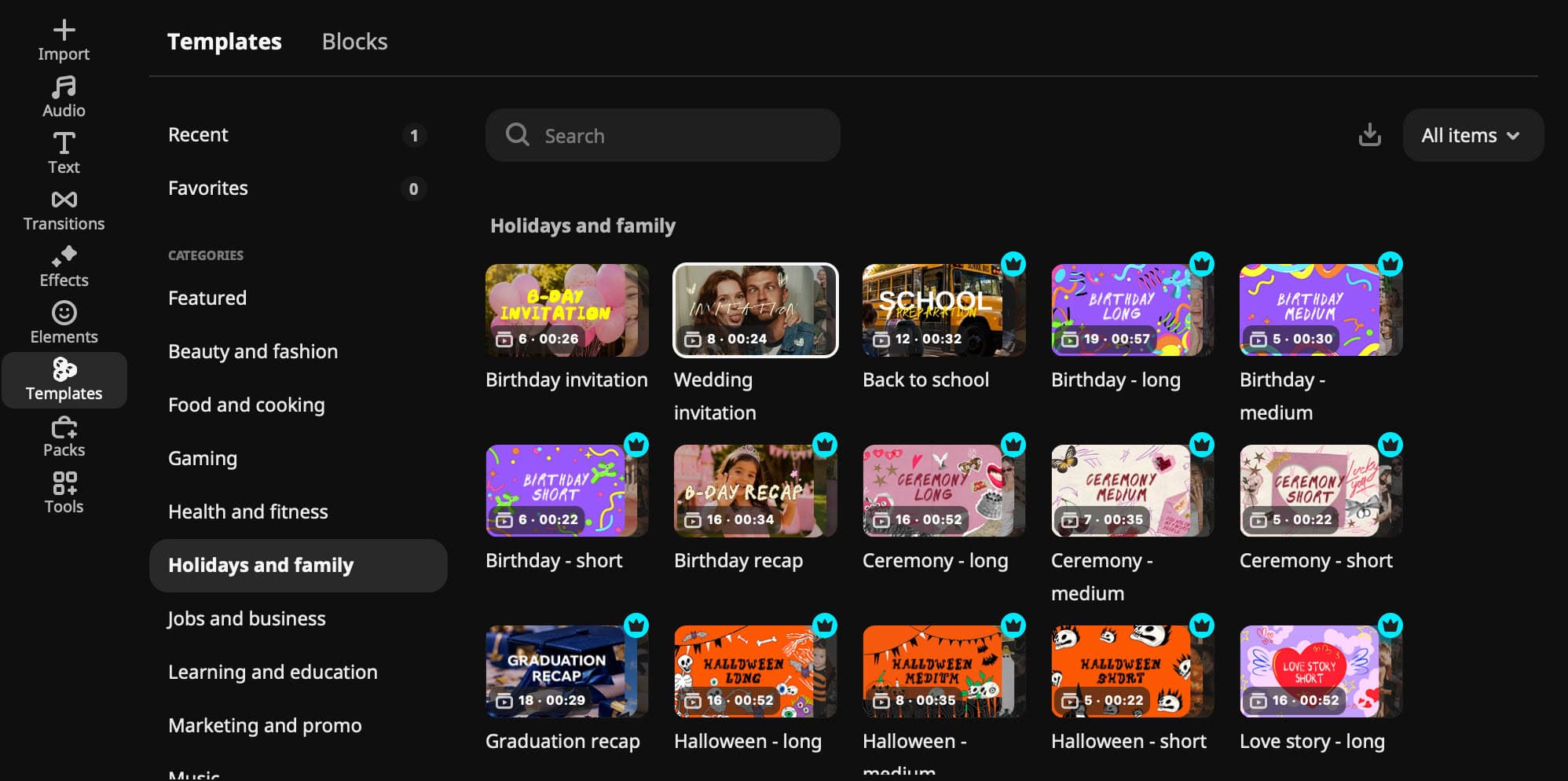
Movavi Templates are customizable, ready-made video designs with sample media, text, music, transitions and editing already in place. Each Template is assembled from shorter modular sections called Blocks.
You can use a Template as your starting structure, replace its sample content with your own footage, photos and text then reorder, add, or remove individual sections (Blocks).
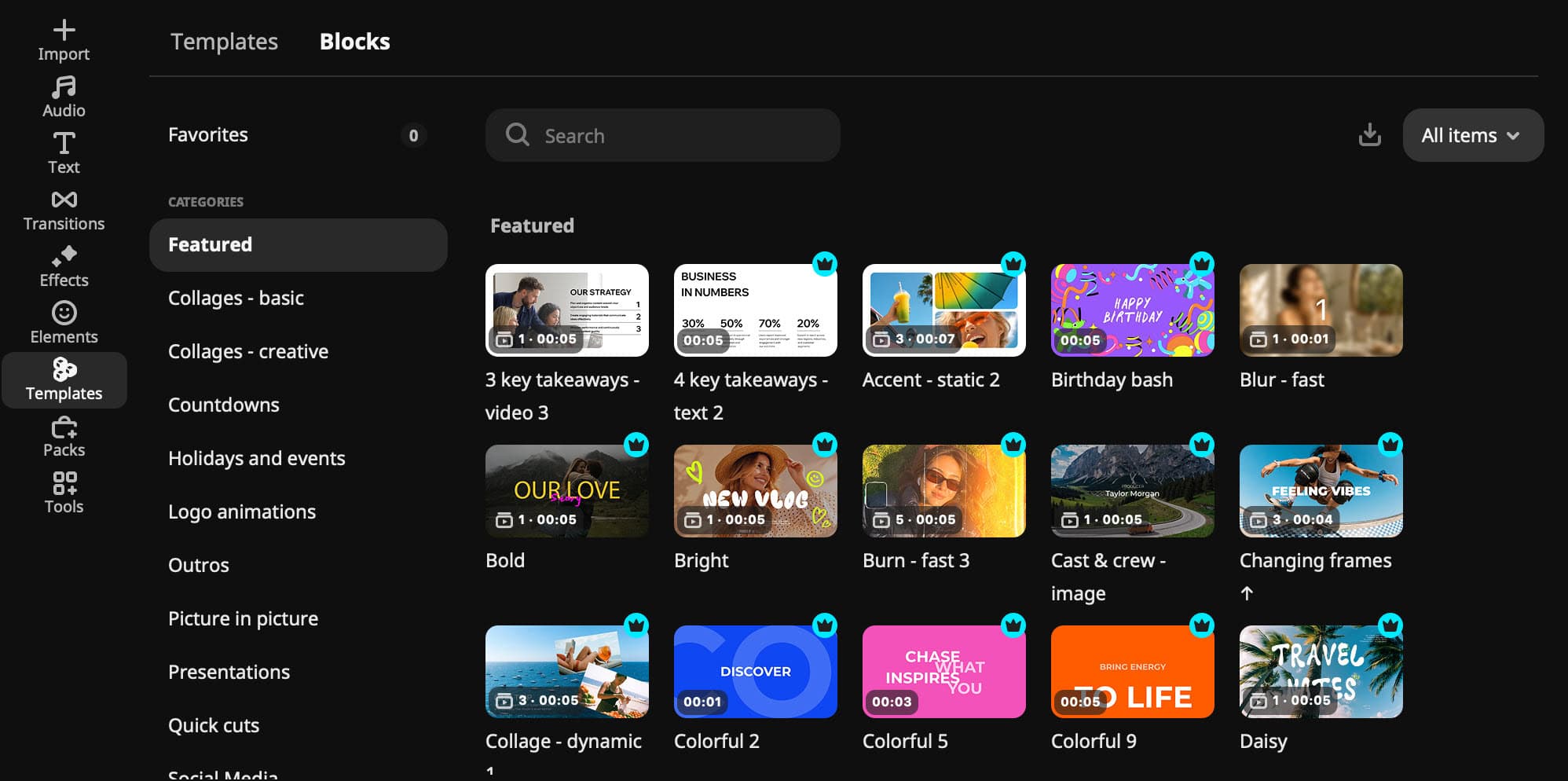
Blocks are short, pre-edited segments such as intros, countdowns, quick cuts, and animated collages that can also be added independently anywhere on the timeline.
This means you can customize an existing Template or construct an entire video Block by Block.
For an absolute beginner, Templates and Blocks provide a quick way to complete a polished-looking project while becoming familiar with Movavi’s editing tools and workflow.
Before adding a file to the timeline you can select only the portion you actually want to use.
For a new user, this means fewer unwanted sections to remove later and a cleaner, easier-to-manage project.
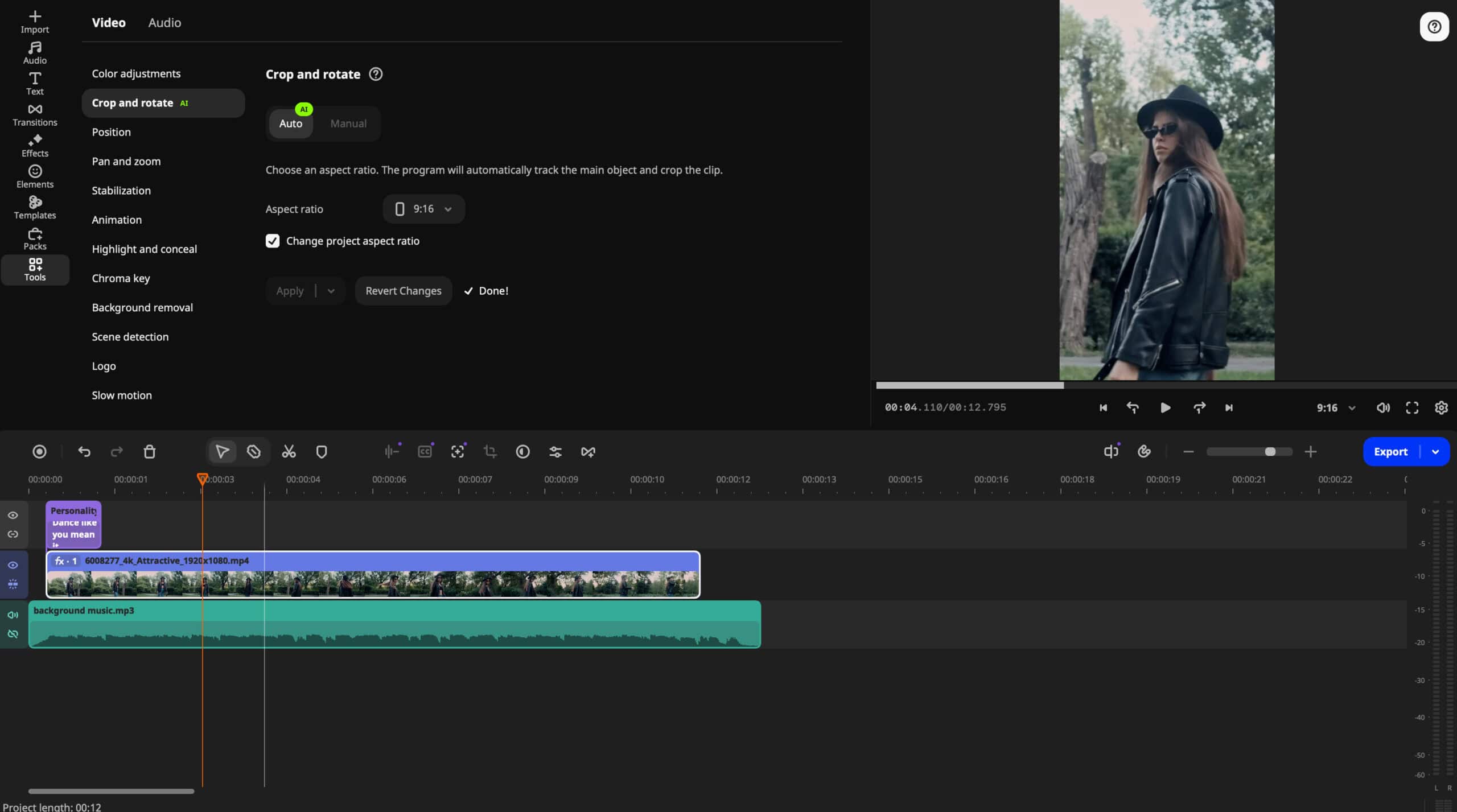
Choose a new aspect ratio and let the crop follow the main person, subject or product, checking the result before continuing.
It provides a quick, automated way to turn horizontal footage into vertical content without manually repositioning the frame throughout the clip.
One of the more common downsides when shooting video in less than ideal lighting conditions is the introduction of “graining” or “noise” into the video image.
This is especially more prevalent when shooting with mobile devices as their automated settings tend to fall off in quality in low light conditions.
You just apply the denoise adjustment to grainy, low-light, older or phone footage then preview the result as a simple starting point for cleaning up the picture without learning detailed noise-reduction controls.
Most automatic subtitle generators at this level of editing software transcribe the detected spoken words at what could be called a “sentence” level.
They tend to identify the start and end of sentences then match the created subtitles to the beginning and end of the sentences.
In the Movavi Video Editor this is occurring at a “word by word” level which is a far more advanced and granular process.
As a result of this you can not only generate more accurate subtitles and timing but can control active-word highlighting so each word is emphasized as it is spoken.
This may seem to be sort of gimmicky on the surface but in fact is a powerful technique for holding the viewer’s attention as they are watching your videos.
Remember, up to 80% on average of all video viewing online is done with the audio switched off so can create the caption style commonly used in Shorts and Reels without timing or animating every word manually.
The user-friendly interface is designed to help users of all skill levels quickly and easily create stunning videos.
The main window is divided into four main sections: Project media, Timeline, Effects, and Output.
The Project media section (top left) act as a library and allows you to import and organize videos, photos, and audio files from your computer or from other sources and devices.
The Timeline section (bottom) is where you can assemble your clips and apply a variety of transitions, effects, and other adjustments.
The Effects section (top right) contains advanced tools for editing audio and video, including color correction, de-noising, image stabilization and many more too numerous to mention here.
Finally, the Output section under the “Export” button allows you to exercise complete control over output format, quality settings and the ability to create a video file or burn a disc.
The program has a comprehensive set of editing tools, including crop, rotate, split, trim, and join, so you can fine-tune your videos how you want.
Additionally, you can add titles, captions, and audio tracks, as well as apply effects, filters, and transitions.
With all of that wrapped up in the user-friendly interface Movavi Video Editor makes it easy to quickly learn how to use the various features and tools.
Movavi Video Editor has the ability to create professional-looking videos regardless of your level of expertise.
Movavi Video Editor offers manual control over all aspects of the video creation process like any other video editing software.
However, it also comes with a range of automated or semi-automated tools to simplify this process for those times when you want to just point and click.
You can:
Like most video editors on the market today the development of the Movavi Video Editor has seen the introduction of a new generation of A.I. enhanced tools
This generally includes actions such as object recognition, facial recognition, motion tracking, and object removal.
With object recognition, the software can identify objects in a video and then automatically adjust the video’s settings to enhance the object’s visibility.
Movavi Video Editor’s AI background removal feature is able to recognize and identify the subject in a video then remove or replace the background from the shot.
It can also identify and separate foreground and background elements with great accuracy, allowing for manipulation of those elements using other effects or controls.
Facial recognition allows you to detect the faces in a video and makes adjustments to only those parts of the video or everything except those detected faces.
Motion tracking allows users to easily track the movement of objects in a video and is particularly useful for creating motion paths for masking and attaching other assets.
In addition to the Audio features listed below Movavi also has an A.I driven noise reduction module that can identify noise in a recording and eliminate it very effectively.
This not only includes the usual wind noise but also room noises, traffic and just about anything else you may have inadvertently captured in the audio track.
The program offers a range of advanced audio features that make it possible to create professional results.
Movavi Video Editor offers powerful and intuitive audio tools that make it easy to achieve professional-quality audio.
The audio equalizer allows users to adjust the sound levels of different frequencies to create a desired sound which is especially handy for cleaning up voice tracks.
The audio mixer lets you mix and balance different audio sources while the audio timeline allows you to precisely control the timing and length of audio clips.
Additionally, you can extend the capabilities of the audio effects module with the help of third party VST plug-ins.
Movavi offers a huge number of online tutorials for the program that provide an intuitive and comprehensive way to learn the program quickly.
These can be found at both the Movavi website and on their channel on YouTube.
The tutorials provide step-by-step instructions on how to use the program’s features, and they include detailed explanations of the different tools available.
They also offer tips and tricks outside of just using the software itself on how to make your videos look more professional.
They are all very thorough and easy to follow making them an ideal way for both beginners and experienced users to learn the program.
And finally Movavi has a very active community page on Reddit where users exchange ideas for tips and techniques as well as the folks at Movavi stepping in and helping people with any problems they are having.
You can access that community here: Movavi on Reddit.
Pros:
Cons:
Movavi Video Editor is a great video editing suite that offers users an easy-to-use and intuitive interface.
It includes an array of tools and effects to help users create high quality videos quickly and easily.
The software provides a wide selection of transitions, titles, effects, and filters that can be used to customize any video.
In addition to the usual tools for cutting, splitting, and merging videos it can also convert videos to different formats offers support for 4K Ultra HD videos and can be used to create slow-motion and time-lapse videos.
With its intuitive design, Movavi Video Editor is an excellent choice for users looking for a simple and efficient video editing software that can help to create amazing results.
Source: Deposit Photos How to Film a Vlog on Your Smartphone (Start to Finish) One…
Source: Deposit Photos You're Using Music Wrong in your Videos (here’s how to fix it)…
Source: Deposit Photos Master Smartphone Composition in 20 Minutes Every time a phone or camera…
How to Hook Viewers with a Text Intro - Movavi Ideas Well the big news…
Source: Deposit Photos This One Change Fixed Five Things In My Real Life It's the…
Source: Deposit Photos How Professionals Edit Videos - Workflow Best Practices Whether you're editing in…