Filmora Video Editing Tips and Tricks
One thing I have noticed about the relentless development of Filmora over the past few years is that the conversation keeps revolving around what’s new.
That’s all very well but what seems to be getting lost is the fact that you can actually use the software to edit videos and create great projects!
I am pretty sure this is because the competition in this field is so fierce that the marketing departments have to keep prioritising new features, new development and all sorts of bright shiny stuff.
So to bring things back to a more realistic and practical level here are some actual editing things you can do with Filmora!
Switching from DaVinci Resolve to Movavi for 30 Days
Considering that this video was made by the guys at Movavi you would expect it to be a bit of a puff piece extolling the virtues of Movavi over Resolve!
In fact it is not really too bad and most of the points they make are quite relevant.
I personally do not use DaVinci Resolve for editing and in fact use either Movavi, Filmora or PowerDirector to do that.
I do use Resolve as a sort of pre-production tool before switching to something else.
My usual workflow is to pull raw footage into Resolve and get the color corrected.
I then use Fairlight to get the audio to the standard for whatever platform the video will ultimately be uploaded to.
That entails noise reduction, reverb correction if needed, compression, EQ then finally, normalization to the correct standard.
I then export to a new file and continue on with the more detailed work in one of the programs already mentioned.
The reason I use either Movavi, Filmora or PowerDirector is because as a blogger I need to keep my hand in with all of these programs to be able to help others.
My requirements are pretty straightforward so I would rarely use the super advanced features of Resolve anyway.
Check out the video and see what you think.
Easy Guide to Using Transitions in Video Editing – PowerDirector
This is one of the new “Back to Basics” videos that CyberLink have been releasing over the past few months.
They really are quite good and make understanding the concepts being shown very easy to get a grip on.
Sure the A.I. generated voiceover is a bit cheesy but I can live with that!
How to Edit Speech in an Audio Track Using an Equalizer
This is a run through of some of the audio editing features in CyberLink PowerDirector.
Its main focus is on a voiceover for video using the equalizer.
If you have ever been presented with an equalizer and not really known where to start then this is a pretty good introduction and explanation of the subject in action.
How To Screen Record on Windows (Free & Pro Level Options)
Screen recording has come a long way since the days of having to pay a ridiculous amount of money to get something that would give reasonable quality.
Just from memory I think Camtasia was about $300.00 and what you got was a screen recorder and very, very basic editing abilities.
These days most video editing software comes with a free screen recorder and outside of that, there are free recorders available that give great results.
Like anything to do with video there are a few settings you need to get right but overall it is a much easier and better proposition.
DaVinci Resolve 20 for Beginners – 5+ Ways to Delete Anything
Ok so this one kind of hits close to home for me because when I first started using DaVinci Resolve, it was a huge problem!
Now you would think that simply deleting something in a project would be pretty straightforward but the real problems start right after you do that.
For any modern video editing software, simply deleting something is not the whole action.
The real statement is to delete… and then what?
Delete and close the space that was left? Delete and move everything on the timeline? Delete and move only those assets on that track?
Delete and what?!
In the video below Jason covers most of the most common deletion methods you will probably comes across and how to do it without destroying your existing work.
DaVinci Resolve for Still Photos
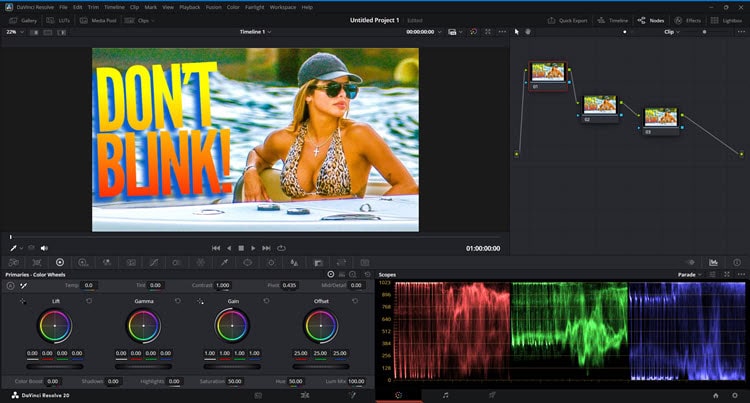
This is an article I stumbled over this week that reminded me of something maybe not everyone is aware of.
Very often I have to use still images in projects or even outside of video work, for example on this blog.
Just as often those still images need either resizing, cropping or in many cases color correction of some kind.
What I discovered quite some time back now is that DaVinci Resolve is really good for doing that stuff!
There are a few little settings you need to get right but apart from that you can use the full power of the Resolve Color Page to work with stills.
Make a Film in DaVinci Resolve – New End-to-End Course
OK so first up full disclosure here!
The course mentioned in the video below from Casey Faris is about $200.00 in those United States type dollars.
So if that’s out of your range you can safely move along!
Secondly I am not an affiliate for the course so my mentioning it here does not generate any type of income for me personally.
Now with that out of the way here’s what I think.
Casey’s free course for DaVinci Resolve is an absolute beast and will put you totally in control of the software for your projects.
If your needs are modest then that’s really just about all you will need apart from just using the software and gaining experience.
However if you really want to take your videos up another level and stand well out from the crowd then this one is totally worth the cost of admission.
And that’s all I have to say about that!
Leave a Reply