You’re Using Music Wrong in your Videos (here’s how to fix it)
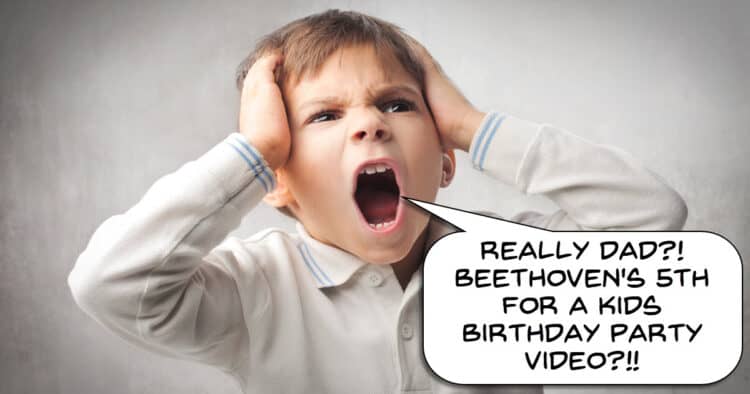
Selecting the right music to fill the background of your videos, or to add moments that enhance the emotion you are trying to evoke, can be a tricky process.
On top of this, music selection is probably one of the more tedious tasks any video editor has to endure!
Choosing b-roll footage is far more straightforward because you can tell at a glance as to whether the footage is suitable, or not.
Not so with music because of two factors that drag out the process.
The first of these is that the search functions on most music download sites are absolutely terrible, with all sorts of music categorized and indexed very, very badly.
The second is that once you get to what you believe to be the right genre or style, you have to wade through mountains of music to find what you are looking for.
Doing that involves waiting for the track to load, listening to enough of the track to get an idea of how the piece is going to play out, and then decided if you want it or not.
Lather, rinse and repeat over and over until you get to the right one.
There is no way I know of to lessen this pain, but what I do know is that the best way to approach it is have a very clear picture in your mind as to what you are really looking for, and stick to that plan.
These Simple Changes Will Make You Look PRO on Video
At a surface level, the average talking head video looks to be a pretty simple style to pull off effectively.
However, if you have watched any amount of videos produced in this style you may have noticed that some tend to seem more engaging than others.
This video covers some of those reasons, and the simplicity of the actions you need to take to get it right will surprise you.
None of these tips are in any way extreme or dramatic in their implementation.
They are just a collections of little tweaks that can make all the difference between holding an audience or having them drift off and click away.
Overview of PowerDirector Screen Recorder
Back in the bad old days in order to record your computer screen to video, you had to fork out some serious money for specific software to do that!
From memory I think the really good ones used to run at around 200 US dollars or more!
At some point many of the popular video editing programs began to include a free screen recorder, and although they were pretty basic, they got the job done.
Recently a few of the bigger video editing programs have updated their screen recorders mainly due to the demand for more flexibility in what you can do with them.
PowerDirector did this quietly a while back but at the time no-one really paid particular attention to it.
This week Sharper Turtle has taken up the challenge in response to a viewer question, and it’s well worth taking a look.
These days the PowerDirector screen recorder is definitely not your grandpa’s screen recorder!
Basic Training with Adobe Premiere Elements 2027, Part 2 of 8
This week we move on to Part Two of the Adobe Premiere Elements 2027 basic training from Steve Grisetti.
Now that the new generative AI features and basic user interface layout have been covered, we move on to starting an actual project!
Importantly Steve demonstrates how to correctly set up your new project so that everything that follows, goes smoothly.
How to Make a Paper Rip Transition – Movavi Ideas
Last week I posted an update on the recent release of Movavi 2027 and their new feature using Templates and Blocks.
In a nutshell, templates are presets that have all the component necessary for a complete project you can use for your own.
All you have to do is add your footage or any other assets and you are done.
Blocks are preset sections that can be added to any template or project and again, they are fully formed and all you do is add your own footage etc.
In this demo from the folks at Movavi you can get a real feel for how easy it is to create completed sequences using Blocks as part of a project.
Filmora 16 Review: Hand-on All New Features of Wondershare Filmora 16
Over the past few weeks a few of the major video editing app have updated to the versions they will be carrying through to the end of the next upgrade cycle in late 2027.
The latest one is Filmora from Wondershare moving from the version 15 series up to Filmora 16.
As is usually the case, Wondershare themselves have created a bunch of videos highlighting the new or improved features in this new version.
The problem here is that those videos do not really show in any real sense, exactly how and why these features exist.
They are strictly exercises in marketing, showing off lots of bright shiny things designed to make us all want to go out and upgrade immediately.
I tend to keep away from all of that and go for something a little more realistic.
So with that in mind, here’s a video from Jacky covering all that’s new and improved from a far more realistic perspective.
6 CapCut Text Tricks That Make You Look Like a Pro Editor
Another text tutorial for this week from Dina and Agnes, only this time a slightly different take on it.
In this weeks video they go quite deeply into the subject of positioning and animating text graphics on the screen.
They cover techniques like placing the text behind the subject, angling the text to match the lines in the image, 3D text and much more.
Just bear in mind the old rule for when it comes to advanced effects in any video editor which is: Just because you can, doesn’t mean you should!
How to Film Yourself When There’s No One to Help You
I see a lot of online videos, especially of the short form variety where someone just grabs their phone and starts talking.
As a result they end up creating a video that is just a bunch of jump cuts stitched together, and often you can see them thinking about what they are going to say next.
This is an instant retention killer because the key element of communication with the audience has been lost.
This video seeks to eliminate that by covering camera position, how to check your own frame without a crew, B-roll that works all from the perspective of working alone.
It shows what doesn’t work and why, and a beginner version you can do today with a phone and a tripod.
Fix Bad Audio in Fairlight – DaVinci Resolve 21
In this next video Jason Yadlovski gives a very comprehensive walkthrough of correcting various types of audio problems in DaVinci Resolve.
The strategies he covers do not necessarily require that you have the Studio version of Resolve so anyone can follow along using the free version.
As a side note here: Even of you are not using DaVinci Resolve as your video editing app, this tutorial provides the fundamental knowledge you need to correct and improve any of your own audio tracks.
Master Cinematic Lighting In 20 Minutes
OK! So let’s not get too fooled by the clickbaity title of this entry on cinematic lighting!
The idea that you are going to be producing Hollywood standard footage by applying the techniques in a twenty minute tutorial on lighting is a bit unrealistic.
However what I do know is that one of the key elements in getting your footage to look as good as it can, is by understanding how to use light to your advantage.
So after watching this tutorial, will you be able to walk on to a Hollywood set and get the lighting right?
Absolutely not!
Will you improve your shots as a result of using this information?
Probably.
How to Make Clean & Professional Motion GFX for Your YouTube Videos – DaVinci Resolve Tutorial
I see a lot of videos these days that display quite a professional standard of both shooting and basic editing skills.
I think that’s because of the availability of recording devices like smartphones, and the fact that storage media lets you just delete mistakes and shoot again.
Similarly, access to reasonably well equipped editing software for post production has also become way easier than in the past.
So if there is one thing I see more often than not that drags the quality of a video down, it has to be graphics.
The problem with video graphics is that it requires two distinct skill sets to pull off successfully.
The first is an understanding of how to design graphic elements in a way that communicates effectively to an audience without being a visual distraction.
The second skill is understanding how to physically create those graphics inside the video editing software you happen to be using.
What I most often see is graphics design and implementation that is way too complicated than necessary.
The result of this are graphics that either fail to communicate or are so distracting that they interfere with the viewing experience.
In the linked video Casey Faris takes us through some simple graphics design and creation that keep things uncomplicated and to the point.
Key Takeaways
- Selecting the right music for videos is challenging due to poor search functions and lengthy decision-making processes.
- Making simple changes can significantly enhance the engagement of talking head videos.
- PowerDirector has updated its screen recorder, making it more flexible and user-friendly than before.
- The article covers various video editing tutorials, including training for Adobe Premiere Elements 2027 and creating motion graphics in DaVinci Resolve.
- Overall, the article highlights easy fixes and tools to improve video quality and editing skills.
Leave a Reply