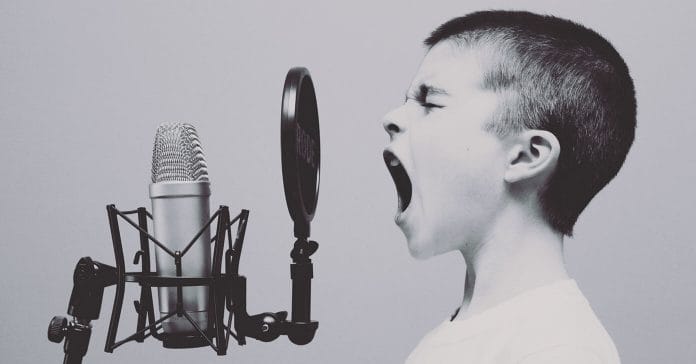
The Basics of Microphones
Let me introduce the video below with an old saying that probably will hold true for as long as there is video.
The most important part of video is… audio.
For most people shooting video and capturing audio at the same time is going to be a bit of a trade off.
In a point and shoot situation where the subject matter just presents itself in front of you there is rarely time to get into the intricacies of how the audio is handled.
However there are going to be times when you can exercise a little control over it and in those situations the very first thing you need to be doing is to dump any use of an on-board microphone and use an external one.
Of course this requires that your cam or capturing device accepts an external mic connection but if it is at all possible you really should make the effort.
You will be richly rewarded when it comes time to edit.
So that then leads to the question of which microphone to use in what situation or more importantly, what is a good microphone!
To answer that question successfully for your situation requires that you understand a few basic things about microphones, how they work, what mic suits what conditions and finally some of the terminology.
Like many technical things it is a bit of a minefield and that’s why I have added the video below this week.
Created by The Basic Filmmaker is it an easy to understand what, where, when, how and why on all things microphone.
Camera Effects: 3 Tricks You Need to Try
Well it has been about three weeks since I got up on my soapbox and railed against the use of pre-packaged transitions in your projects.
So just in case anyone was beginning to worry… here we go!
Actually I am not really going to go off on transitions this week because in all reality most people use them because they don’t know what else to do.
For most people when they start editing videos the situation is that they are kind of blindly stitching together clips on the timeline hoping it will all be OK.
Generally this type of project is a matter of loading everything available in “sort of” the sequence it was shot, cutting out the bad bits then reviewing the result with a growing sense of disappointment.
They know it looks bad but don’t have the knowledge as to why it looks bad, it just does!
Then from who knows where they get the idea that sliding some kind of transition into the cuts will somehow save things and very often it actually does improve the situation.
But really, it is a false hope.
People know there is is supposed to be some kind of “thing” sometimes between shots to break things up but they have no real idea of what actually to do.
So, one of the best replacements for an “out of the box” transition is an in camera transition or effect that will add interest to your projects.
There are three examples in the video below all of which are great effects, easy to accomplish and don’t (or shouldn’t) look too cheesy!
Video Stabilization
Occasionally I come across an article that summarizes very well and entire topic and this week I found one on stabilization.
The importance of stabilization has increased dramatically as we have moved into the high definition era given that even the slightest amount of camera shake or movement will be amplified on the screen.
There are a number of basic ways in which video can be stabilized with the absolute last on the list being software stabilization.
The reason this one comes last is that it requires some pretty complex calculations to be carried out and results in two major downsides.
The first is that those calculations have to be factored into your final output at the render stage so rendering times can go through the roof depending on how heavily you have applied the effect.
The second of these is that any time you re-render video footage that wasn’t captured in a professional format you are going to lose quality.
Remember, most of you will be capturing footage using the H.264 codec resulting in some kind of MP4 file and this was never designed with editing or manipulation like this in mind.
So check the link below for some great information on everything you ever wanted to know about stabilization.
OK, there is probably more to know than what’s on that page but its a good start!
Cheap Tricks – It’s Wrinklin’ Time (VFX Tutorial)
So let me kick this one off with a little warning.
The video below is a fascinating watch BUT, it is rather advanced in both terminology and techniques.
To be honest I would usually tend not to included something like this in the Friday Roundup because of that complexity but I just found it to be quite interesting.
The effects being demonstrated are being done in DaVinci Resolve but I am sure you could mimic at least some of them in a reasonably good video editor at the consumer level .
3 Ways to BLUR Your Video
Most of the time especially with HD footage, we are all chasing the Holy Grail of being in focus!
However that are times when having a “soft” focus or a flat out blur may be what is needed.
For those time there are tools within your editing software that will allow you to blur backgrounds or objects that you do not want the viewer to have their attention on.
Similarly there may be times when you just want to blur our a face or a number plate on a car.
The video below is a pretty simple run through of how to do this using Filmora ans as such the techniques are very basic.
Bear in mind Filmora is intentionally simple to suit its users.
Other software will offer more choices of how to go about the task especially by using motion tracking and blur masks.
Shoot Video with iPhone and Android like a PRO
Given the fact that a lot of us are shooting with out smartphones at the moment and also that the quality of that footage can be quite good it was inevitable that some good Apps would appear.
Most phones have tiny lenses and tiny sensors to capture video buy despite that you can still get some great quality footage.
What you may not know is that the lens to sensor to final final settings in just about any cam are preset to suit a “general” shooting scenario.
A kind of one size fits all situation.
What you may also not know is that those settings are accessible in many cases and you would be quite surprised at just how much control you can exercise over them.
That’s where the current batch of video Apps come in.
These Apps are designed to access those hidden features and setting and allow you to control them much like a dedicated video camera.
The video below is a run through of the settings you can control in your phone by the Filmic Pro App just to give you an idea of what is possible.
Filmic Pro isn’t the only fish in the ocean as far as Apps for shooting video go but it is quite typical.
Powerdirector 16 – Map Animation
There is a paid plugin that you can get for most video editing software purpose built for creating animated travel route maps.
The software is called Vasco da Gama with the cheapest version coming in around the $150 mark.
My problem with that is that creating a travel route map for most people is not really a common task and if I am going to fork out $150 on a plugin I would absolutely want it to be something I use every day!
As a down and dirty replacement there is a way to create travel route maps in most video editing software by creating an animated mask that plays over a still image background of the map you are using.
The video below covers the steps needed to get the job done in CyberLink PowerDirector 16 BUT!
Just about all fully featured video editing software these days come with the necessary features to do this so check the video and if you are not using PowerDirector just find the equivalent tools in your editor to do it.
Leave a Reply